How to edit your website
Updated 22 Jul 20262 min reading
You edit text, images, and design directly in a preview of the website. Changes are automatically saved as a draft, and you decide when they should be published.
If My website does not appear under Company, please ask the school owner or an administrator for access to manage the driving school's profile.
Open the website
- Select Company in the menu at the bottom of the Startkørekort app.
- Select My website.
- Select Edit website.
If you haven't created the website yet, first follow How to create a website.
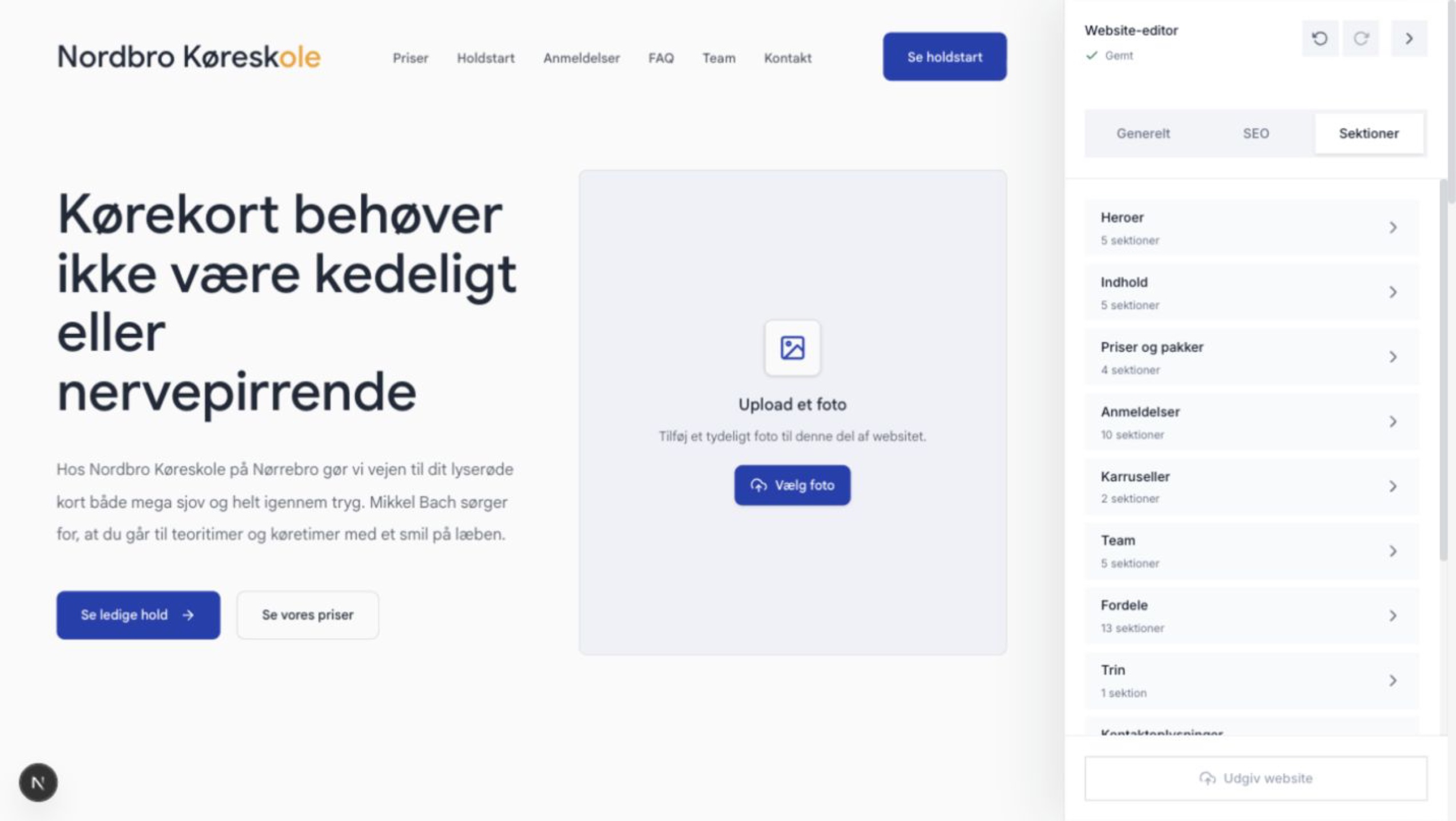
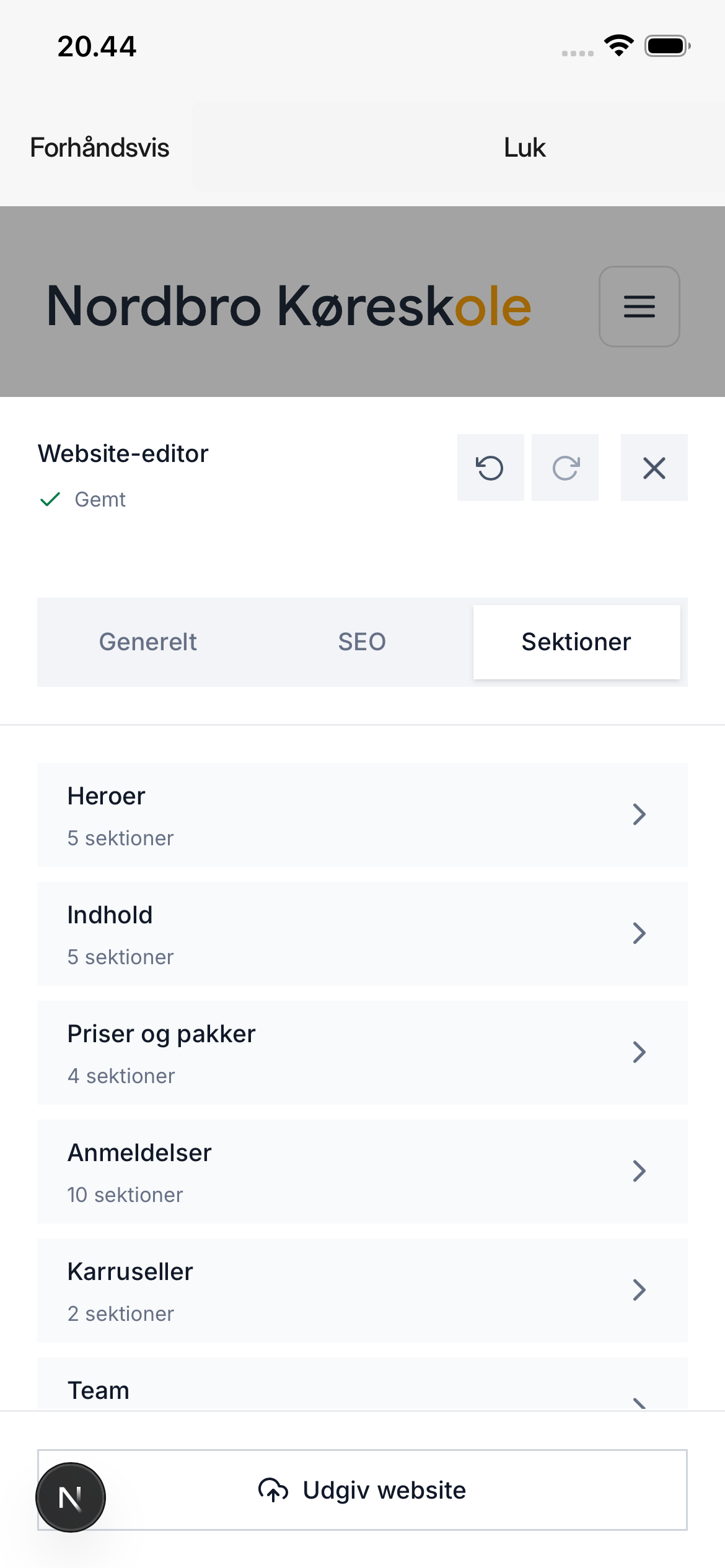
You will see the website on the left and the editing panel on the right.
Open the editing panel using the button in the bottom right.
The status Saved means that the latest changes have been saved to the draft.
Edit text
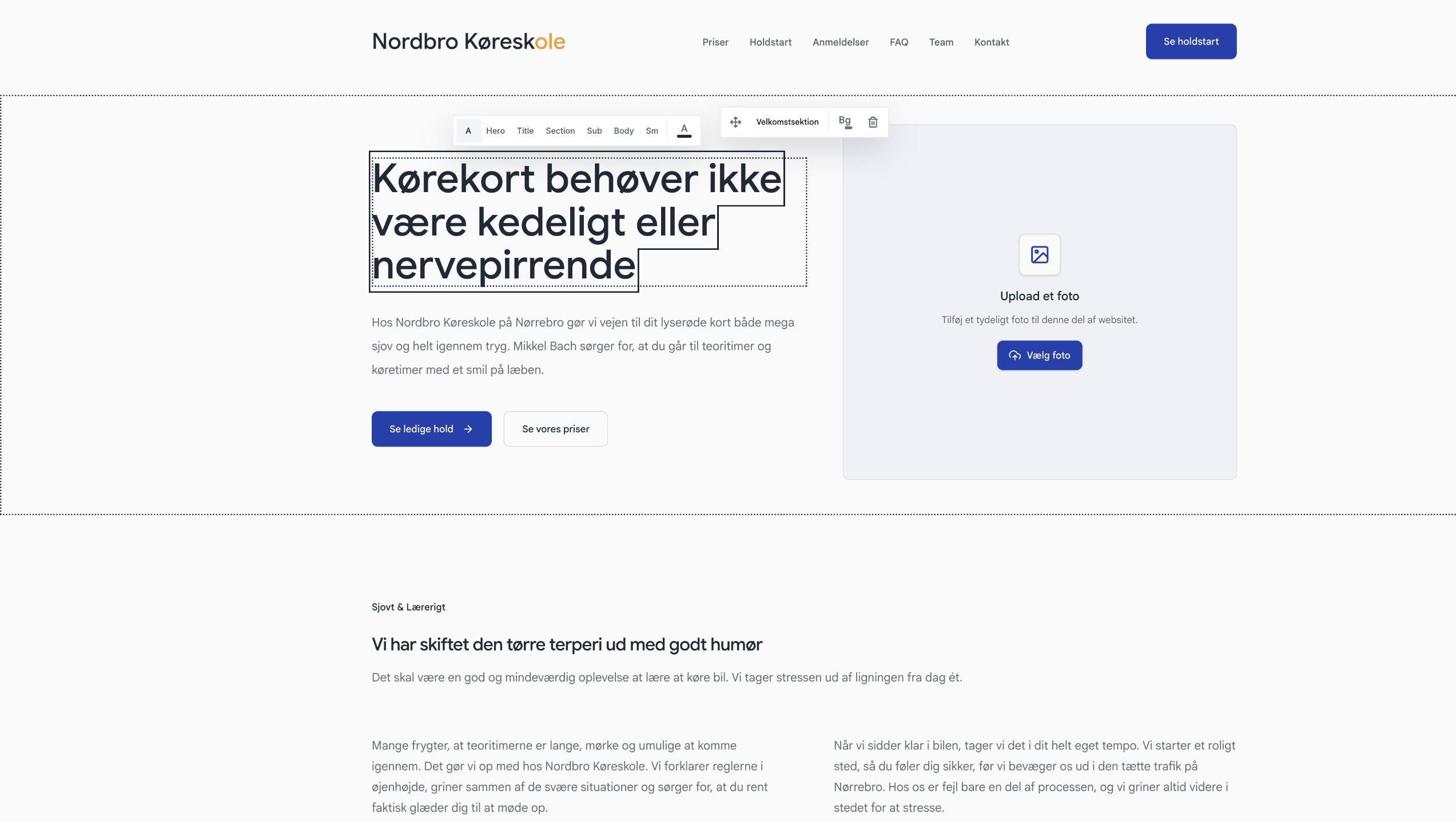
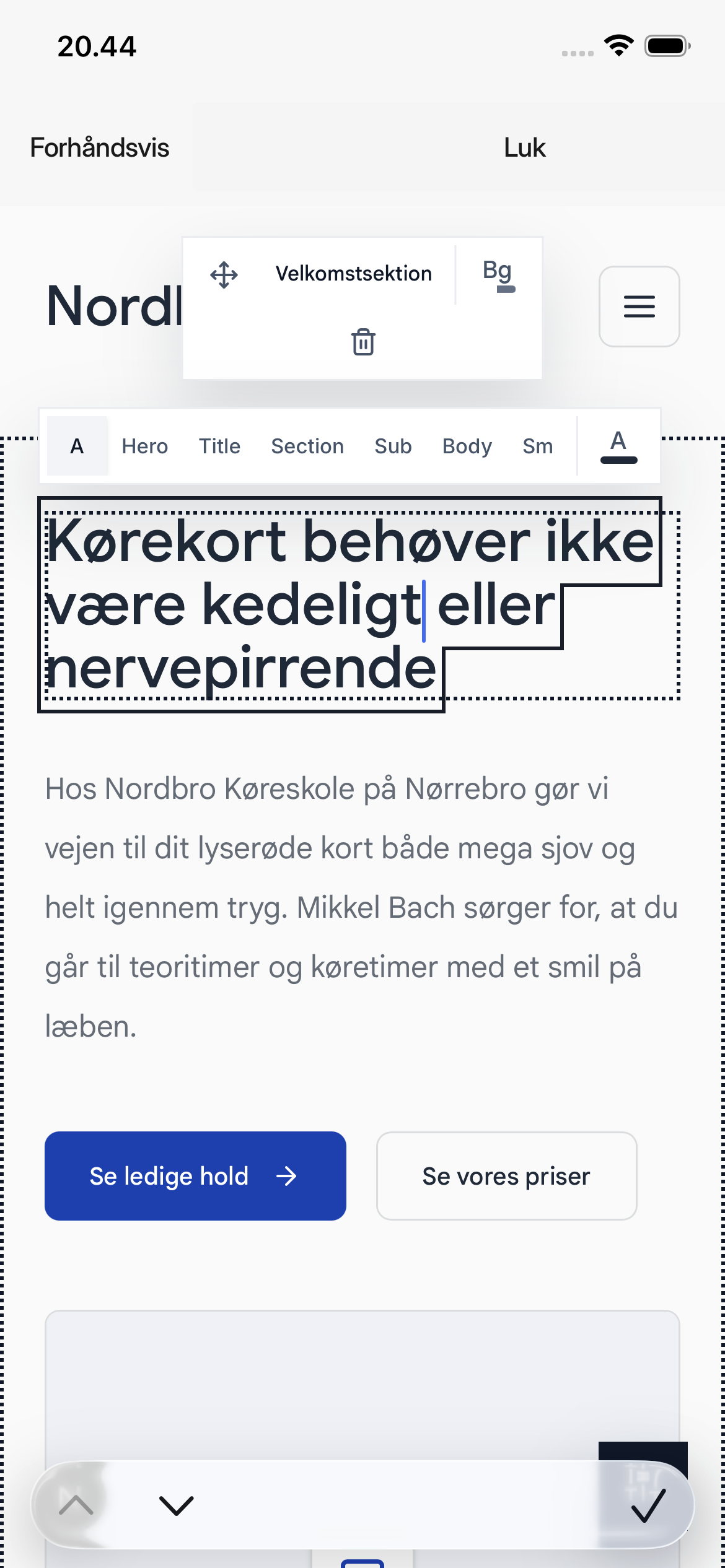
- Select the text on the website that you want to edit.
- Type the new text directly into the field.
- Select a spot outside the text when you are finished.
When text is selected, you can also change the text size and color in the toolbar above the text.
Change an image
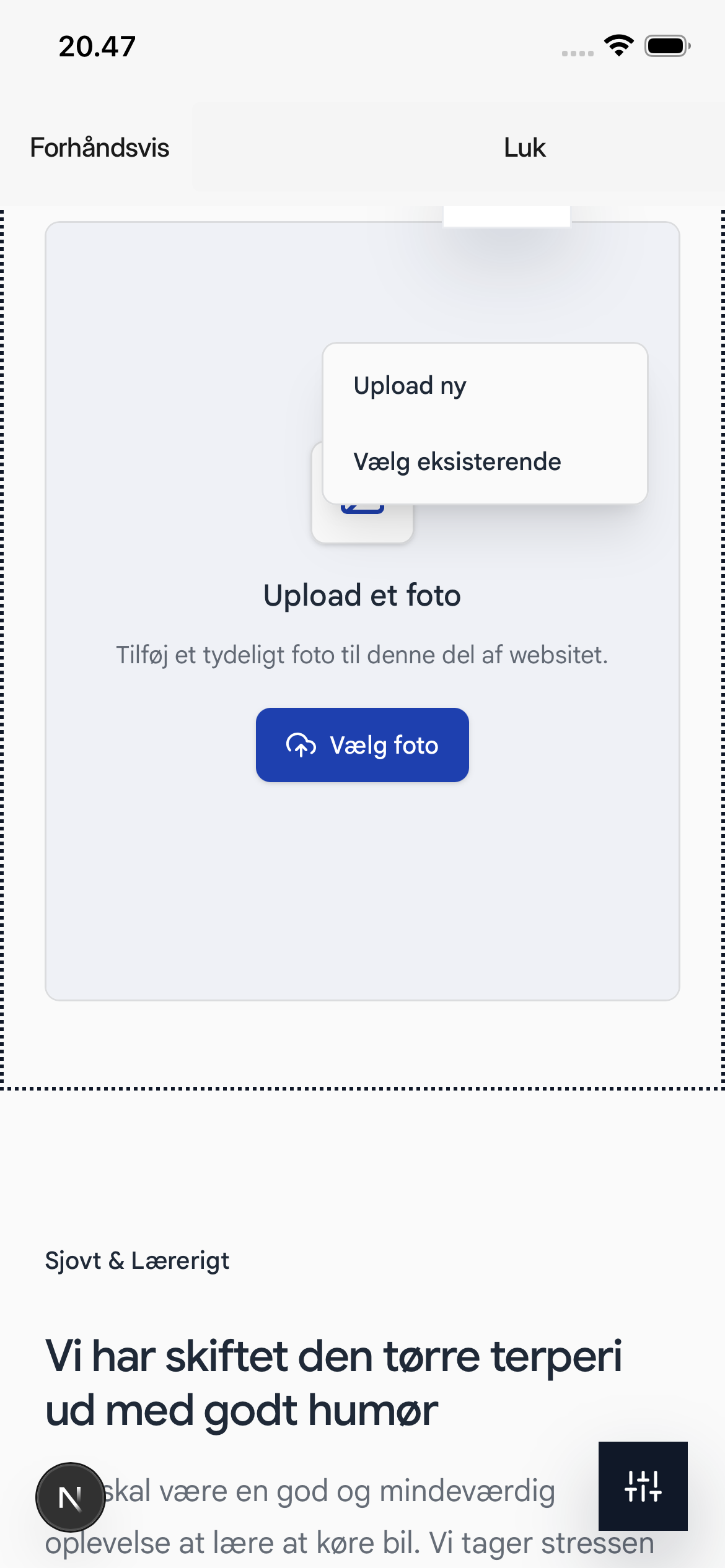
- Select Select photo on an empty image field or Change photo on an existing image.
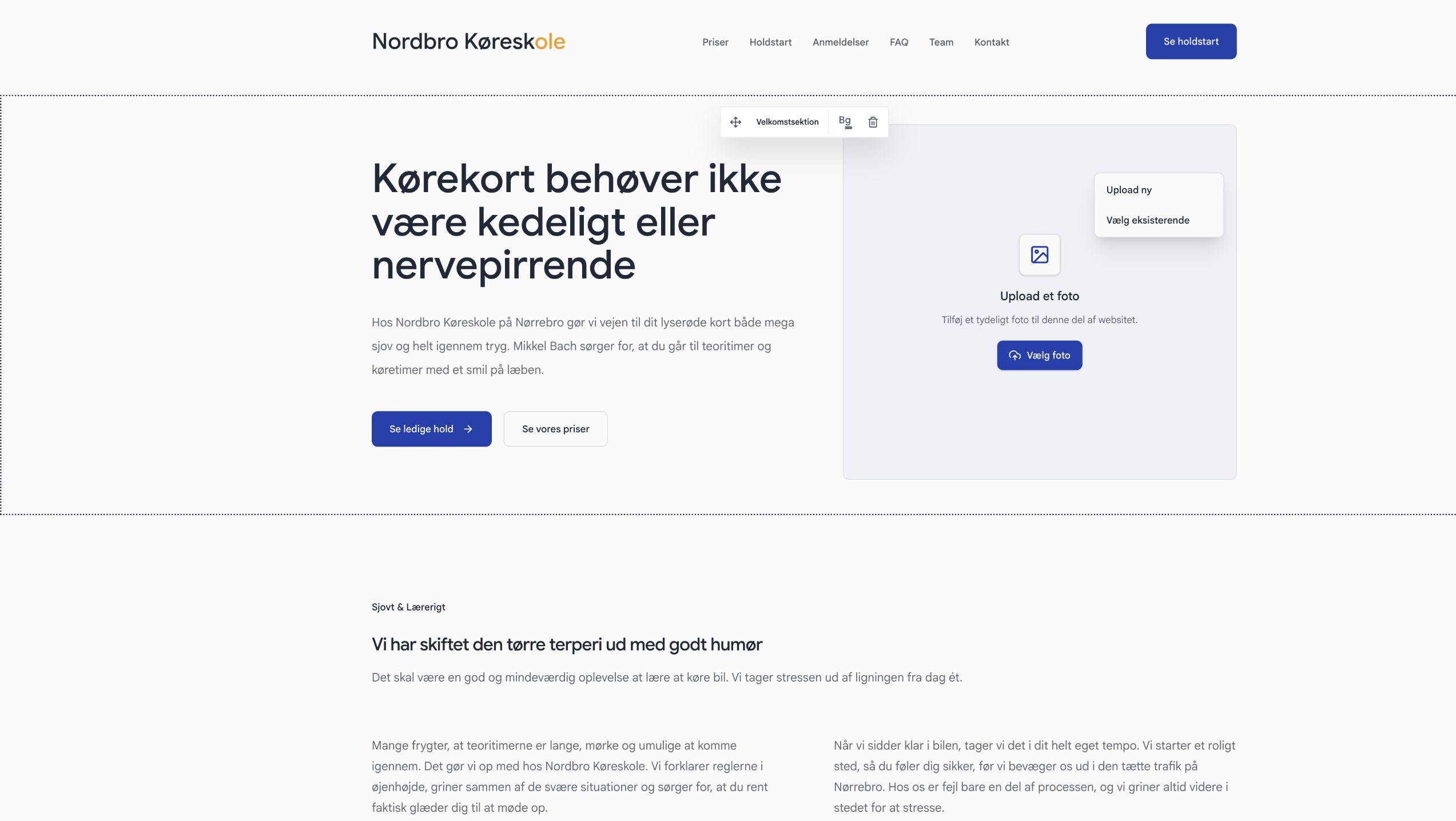
- Select Upload new to retrieve an image from your device. Select Select existing to use an image you have already uploaded.
- Wait until the image is processed and the status at the top shows Saved.
Customize design and sections
- Select General to change the navigation menu, text style, colors, and corners.
- Select Sections to find a new section. Drag the section from the panel and onto the desired location on the page.
- Select a section on the website to move it, change the background, or delete it. Use Undo if you want to restore the latest change.
Publish the changes
Check the website in the preview. Wait until the status shows Saved, and then select Publish website.
The draft only becomes visible on the public website once you publish it.
Was this article helpful?
Finding related articles…