How to create a lesson
Updated 22 Jul 20262 min reading
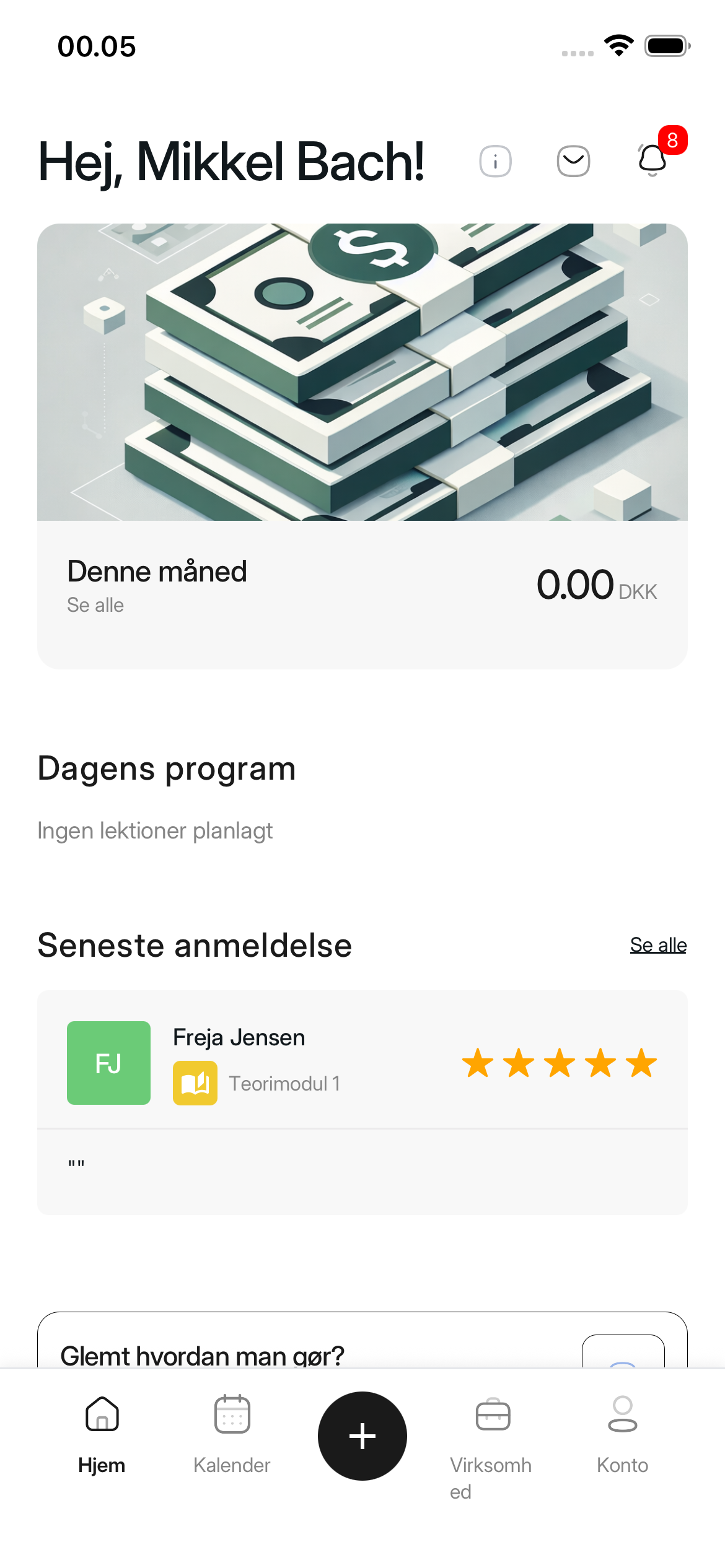
As a driving instructor, you can create a lesson from any screen by tapping the plus icon in the center of the navigation bar at the bottom of the screen. Here you can create theory, first aid, maneuvering track, or skid pan lessons. On-road driving lessons are not created here.
How to do it
1. Tap the plus icon
The Select Lesson Type screen opens.
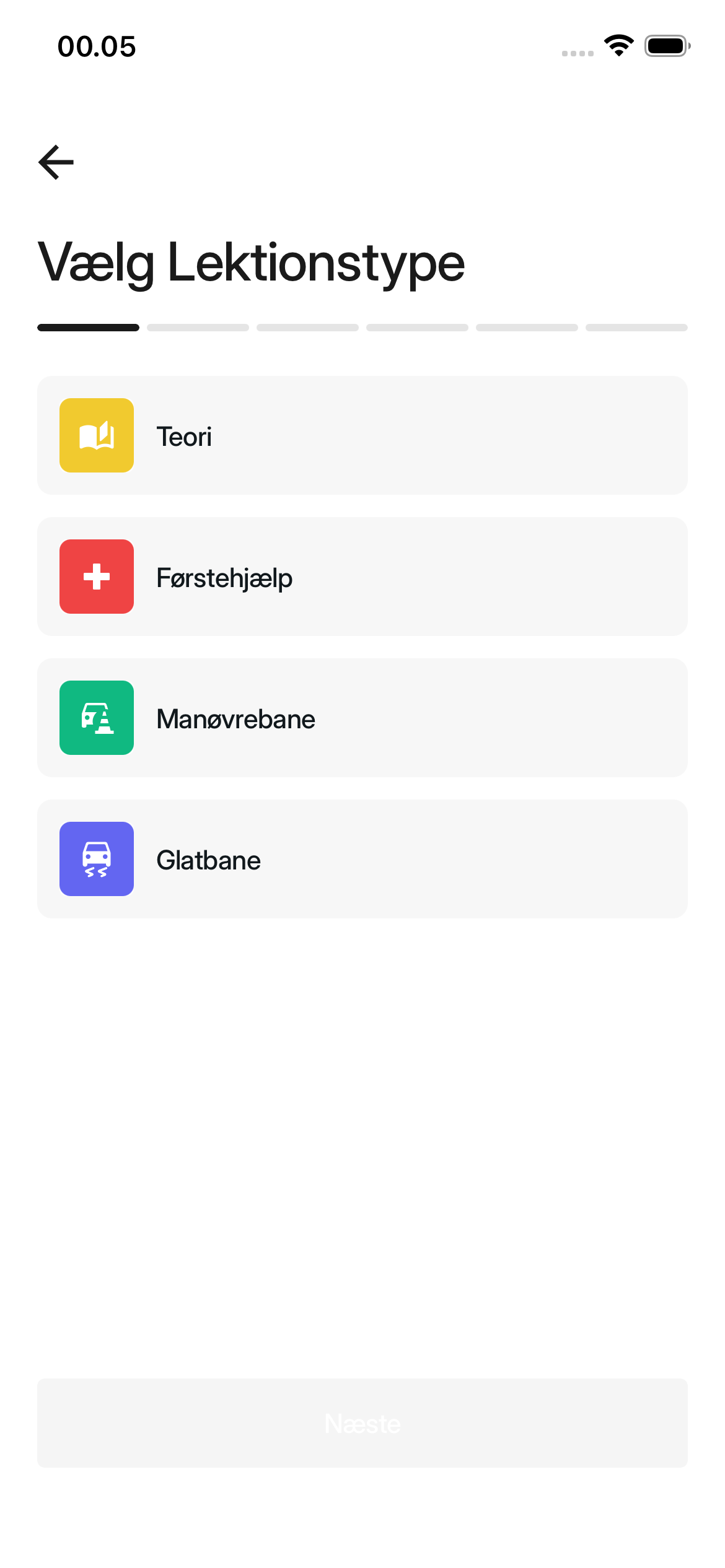
2. Select lesson type
Select Theory, First Aid, Maneuvering Track, or Skid Pan. Then select Next.
If you select Maneuvering Track or Skid Pan, you must also select who is conducting the lesson. Select I will conduct the lesson myself or External instructor. Then fill in the information shown on the screen.
3. Specify duration and capacity
Fill in Duration in minutes and Capacity. A theory lesson must last at least 45 minutes. Select Next.
4. Select location
Select a saved location. If the location is missing, select Add New Location, save it, and then select it from the list. Select Next.
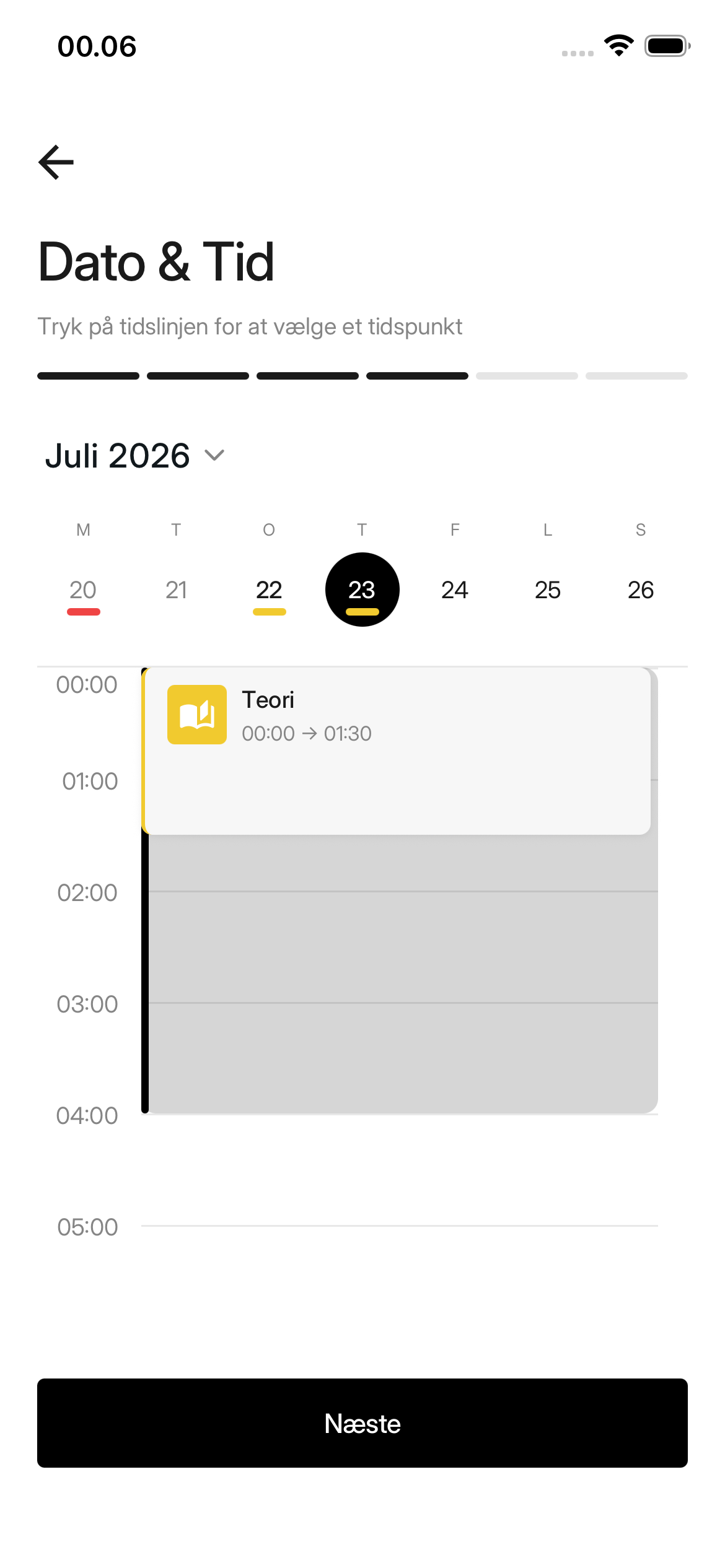
5. Select date and time
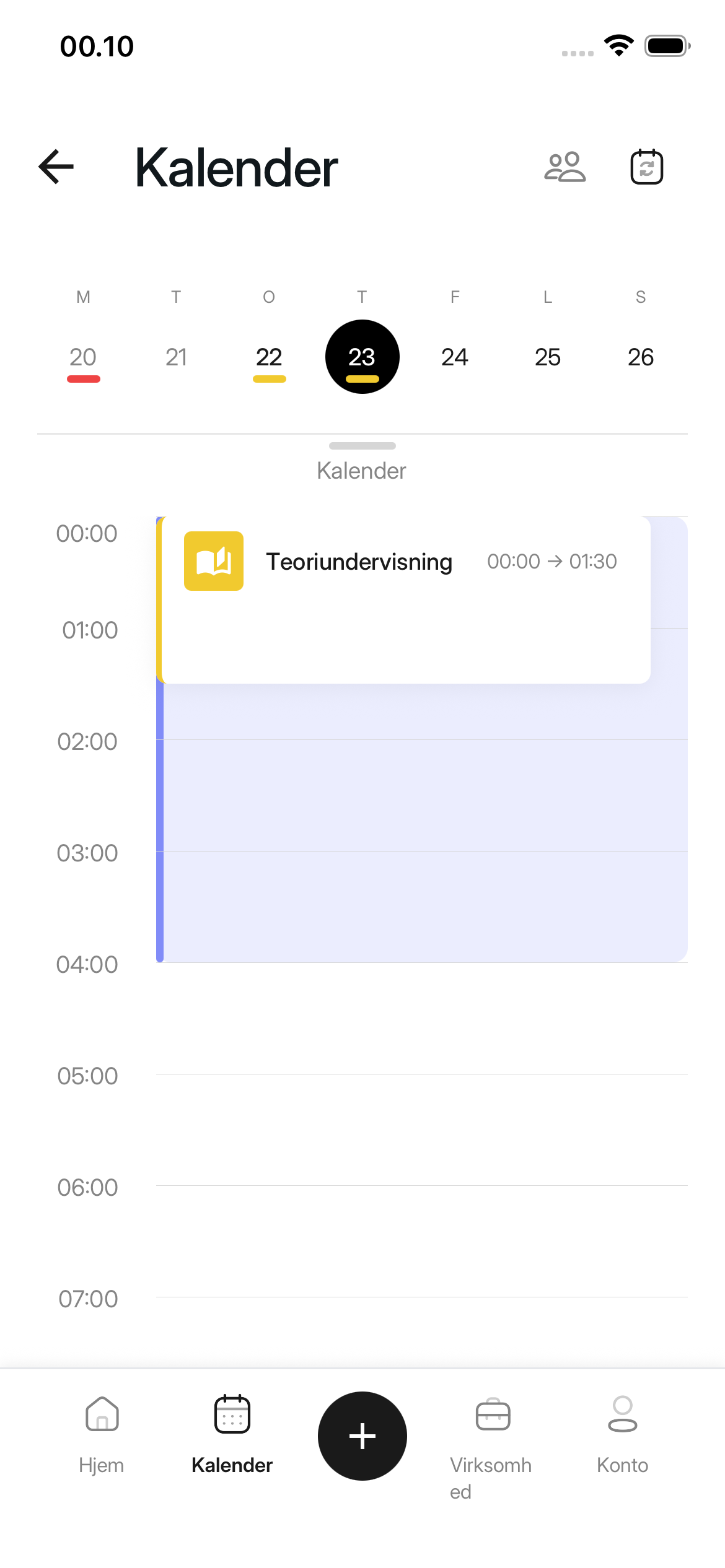
Select the date and tap the timeline to choose the start time. Check the preview and select Next. The time must be in the future and must not overlap with another lesson in your calendar.
6. Invite students or continue
On the Invite students screen, you can select students with an active package at the driving school. Students whose package covers the lesson will not be charged separately; they simply need to accept the invitation to be enrolled.
First aid is not included in any package. An invited student must pay the displayed lesson price to accept an invitation to first aid. The student will only appear as enrolled once the payment has been approved.
This step is optional, so you can select Next without inviting anyone. The number of selected students must not exceed the lesson's capacity.
7. Review and create the lesson
On the Review lesson screen, check the lesson type, location, date and time, lesson price, and students. Tap any item you wish to change.
The lesson will be available on the marketplace at the displayed Lesson price. Therefore, check the price and capacity before creating the lesson.
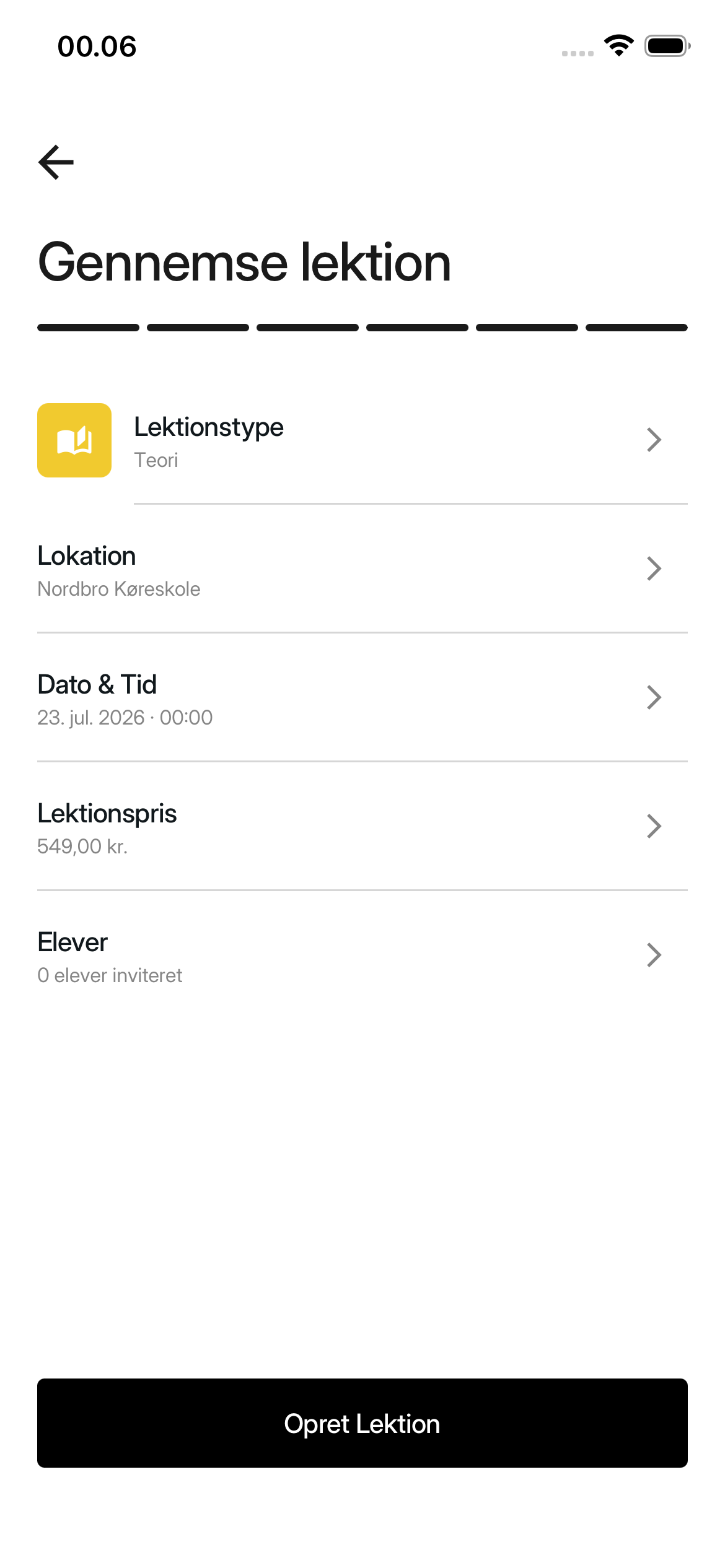
Select Create Lesson.
Once the lesson is created
The app opens the Lesson Details screen. You can also find the lesson on the selected date under the Calendar tab.
Was this article helpful?
Finding related articles…